
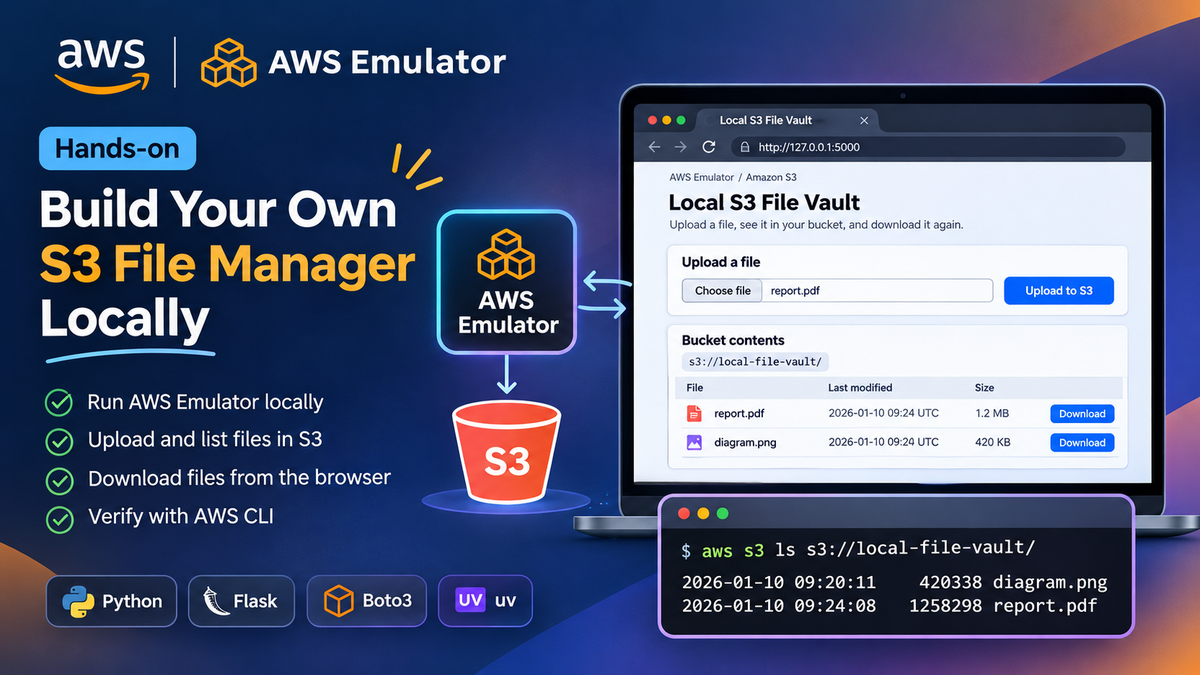
AWS Emulator Hands-on: Build Your Own S3 File Manager Locally
Create a web application that uploads, lists and downloads files from an emulated Amazon S3 bucket using Python, Flask, Boto3 and uv. Then verify the same files using AWS CLI.
Uploading a file to Amazon S3 is probably one of the simplest things you can do with AWS. A few lines of Boto3 code are enough to get the job done.
But what happens when you are developing an application and need to test that code repeatedly?
You need a bucket, AWS credentials, the right Region and a working configuration. Every time you want to experiment with an upload, download or other S3 operation, you are interacting with actual AWS resources. For a small development project, that can be more setup than the task itself deserves.
I wanted to explore a different approach: build a small S3 file manager that runs entirely on my local machine. It should let me upload files through a browser, browse the bucket contents, download files and verify everything independently using AWS CLI.
This is where AWS Emulator comes in.
On November 11, 2026 AWS announced AWS Emulator. It provides a local implementation of AWS service APIs that can be accessed through the AWS CLI and existing AWS SDKs. Instead of sending requests to AWS, your application sends them to a local HTTPS endpoint.
We will use Python, Flask, Boto3 and uv to build the application. By the end, we will have a working browser-based file manager backed by an emulated S3 bucket, without provisioning an actual AWS bucket or needing an AWS account.
Let's get our hands dirty.
## What are we building?
Our application will have a simple interface with two sections.
The first section allows users to select and upload a file. The second displays the files currently available in the S3 bucket, including their names, sizes and last-modified dates.
Users can also download files directly from the browser.
Here is how the components communicate:
                Browser
                   |
                   | Upload / Download
                   v
             Flask Application
                   |
                   | Boto3 SDK
                   v
            AWS Emulator
                   |
                   v
             Amazon S3 API
                   |
                   v
             Local S3 State

          AWS CLI accesses the
          same bucket independently
We will use:
| Component | Purpose |
|---|---|
| AWS Emulator | Local AWS API environment |
| Amazon S3 | Store uploaded files |
| Python | Application development |
| Flask | Web application |
| Boto3 | S3 API communication |
| uv | Python package management |
| AWS CLI | Verify S3 objects |
One architectural decision is worth mentioning. The browser does not communicate directly with the emulator. Flask receives browser requests and uses Boto3 to communicate with S3.
That keeps AWS credentials and endpoint configuration on the server side.
1. Install AWS Emulator
For this walkthrough, I am using Ubuntu Linux.
AWS provides native Debian and RPM packages for Linux. On Windows and macOS, the documented approach is to run the emulator in Docker.
Download the Debian package:
curl -fsSLo aws-emulator.deb \
https://downloads.aws.com/aws-emulator/packages/aws-emulator/LTS/latest/aws-emulator_amd64.deb
Install it:
sudo apt-get install -y ./aws-emulator.deb
Verify the installation:
aws-emulator -v

For ARM64 Linux systems, download the corresponding ARM64 package.
Official installation guide:
https://docs.aws.amazon.com/emulator/latest/userguide/getting-started.html
2. Start AWS Emulator
Starting the emulator requires just one command:
aws-emulator --telemetry off
By default, it starts an HTTPS endpoint:
https://127.0.0.1:9297
Keep this terminal open.
When AWS Emulator starts, it generates its own access key, secret access key and HTTPS certificate. These are stored under:
~/.aws/emulator/9297/
The directory contains files such as:
config
emulator_credentials
ca.pem
truststore.p12
These credentials belong to the current emulator session. They are not actual AWS credentials.
There is one important thing to remember: AWS Emulator keeps its resources in memory. When you stop the emulator, the buckets and objects created during that session disappear.
3. Configure AWS CLI and Boto3
Open a second terminal.
We need both AWS CLI and Boto3 to communicate with the same emulator instance.
Execute the following commands:
export AWS_ENDPOINT_URL=https://127.0.0.1:9297

export AWS_SHARED_CREDENTIALS_FILE=$HOME/.aws/emulator/9297/emulator_credentials

export AWS_CONFIG_FILE=$HOME/.aws/emulator/9297/config

export AWS_CA_BUNDLE=$HOME/.aws/emulator/9297/ca.pem

export AWS_EC2_METADATA_DISABLED=true

export AWS_DISABLE_HOST_PREFIX_INJECTION=true

export AWS_REGION=us-east-1

export AWS_DEFAULT_REGION=us-east-1
A few settings deserve attention.
AWS_ENDPOINT_URL directs supported AWS SDK requests to the local endpoint.
AWS_SHARED_CREDENTIALS_FILE points to the credentials generated by AWS Emulator.
AWS_CA_BUNDLE allows Boto3 and supported AWS tools to trust the emulator's HTTPS certificate.
AWS_EC2_METADATA_DISABLED prevents the SDK from trying to retrieve credentials through EC2 instance metadata.
AWS_DISABLE_HOST_PREFIX_INJECTION prevents supported SDKs from modifying the endpoint hostname for certain operations.
There is also an S3-specific consideration. Keep 127.0.0.1 in the endpoint URL. The emulator expects the bucket name in the request path and does not support S3 requests that put the bucket name in the hostname.
Before continuing, remove any real AWS credentials from the current shell:
unset AWS_ACCESS_KEY_ID
unset AWS_SECRET_ACCESS_KEY
unset AWS_SESSION_TOKEN
unset AWS_PROFILE
This prevents the SDK from accidentally using credentials from your actual AWS account.
Verify the connection
Run the emulator health check:
curl --cacert ~/.aws/emulator/9297/ca.pem \
https://127.0.0.1:9297/__admin/health
Expected response:
ok
You can also execute:
aws sts get-caller-identity
AWS Emulator uses the account identity:
000000000000
This is a useful way to confirm that your CLI is communicating with the local emulator.
4. Create an S3 bucket
Before building the web application, let's create our bucket using AWS CLI.
We will call it local-file-vault.
export S3_BUCKET=local-file-vault
Create the bucket:
aws s3api create-bucket \
    --bucket "$S3_BUCKET"
List the buckets:
aws s3api list-buckets
You should see local-file-vault in the response.
We have just created an S3 bucket through AWS CLI, but it exists only inside AWS Emulator.
This is useful because our next step is to access that same bucket using a Python application.
5. Create the Python project using uv
For dependency management, we will use uv.
Install uv:
curl -LsSf https://astral.sh/uv/install.sh | sh
Verify:
uv --version
Create our project:
mkdir local-s3-file-manager
cd local-s3-file-manager
Initialize the project:
uv init --bare --python 3.12
Install Flask and Boto3:
uv add flask boto3
Our directory structure will look like this:
local-s3-file-manager/
|
|-- pyproject.toml
|-- uv.lock
Flask will serve the web interface, while Boto3 will handle all interactions with S3.
6. Build the Flask application
Create a file named app.py.
We need three main routes:
/displays the files in our S3 bucket./uploadreceives a file and uploads it to S3./download/filenameretrieves an S3 object and sends it to the browser.
Here is the complete application:
import os
from io import BytesIO
from pathlib import Path

import boto3

from botocore.exceptions import BotoCoreError, ClientError

from flask import (
    Flask,
    abort,
    flash,
    redirect,
    render_template,
    request,
    send_file,
    url_for,
)

from werkzeug.utils import secure_filename

BUCKET_NAME = os.environ.get(
    "S3_BUCKET",
    "local-file-vault"
)

MAX_UPLOAD_BYTES = 16 * 1024 * 1024

app = Flask(__name__)

app.secret_key = os.environ.get(
    "FLASK_SECRET_KEY",
    "local-development-only-change-me"
)

app.config["MAX_CONTENT_LENGTH"] = MAX_UPLOAD_BYTES

# Boto3 reads endpoint, credentials and
# certificate configuration from environment variables.

s3 = boto3.client("s3")

def format_size(size):

    if size < 1024:
        return f"{size} B"

    if size < 1024 * 1024:
        return f"{size / 1024:.1f} KB"

    return f"{size / (1024 * 1024):.1f} MB"

@app.get("/")
def index():

    try:

        response = s3.list_objects_v2(
            Bucket=BUCKET_NAME
        )

        objects = response.get("Contents", [])

        objects.sort(
            key=lambda item: item["LastModified"],
            reverse=True
        )

        for item in objects:
            item["display_size"] = format_size(
                item["Size"]
            )

    except (ClientError, BotoCoreError):

        app.logger.exception(
            "Could not list objects in S3"
        )

        flash(
            "Could not read the S3 bucket. "
            "Check the emulator and bucket configuration.",
            "error"
        )

        objects = []

    return render_template(
        "index.html",
        bucket=BUCKET_NAME,
        objects=objects
    )

@app.post("/upload")
def upload():

    uploaded = request.files.get("file")

    if uploaded is None or not uploaded.filename:

        flash("Choose a file before uploading.", "error")

        return redirect(url_for("index"))

    filename = secure_filename(
        uploaded.filename
    )

    if not filename:

        flash("Invalid filename.", "error")

        return redirect(url_for("index"))

    try:

        s3.put_object(
            Bucket=BUCKET_NAME,
            Key=filename,
            Body=uploaded.stream,
            ContentType=(
                uploaded.mimetype
                or "application/octet-stream"
            )
        )

        flash(
            f"Uploaded {filename} successfully.",
            "success"
        )

    except (ClientError, BotoCoreError):

        app.logger.exception(
            "S3 upload failed"
        )

        flash(
            "Upload failed. Check the terminal logs.",
            "error"
        )

    return redirect(url_for("index"))

@app.get("/download/<path:key>")
def download(key):

    try:

        response = s3.get_object(
            Bucket=BUCKET_NAME,
            Key=key
        )

        data = response["Body"].read()

    except ClientError:

        app.logger.exception(
            "S3 download failed"
        )

        abort(404)

    except BotoCoreError:

        app.logger.exception(
            "S3 client error"
        )

        abort(502)

    filename = Path(key).name or "download"

    return send_file(
        BytesIO(data),
        mimetype=response.get(
            "ContentType",
            "application/octet-stream"
        ),
        as_attachment=True,
        download_name=filename
    )

@app.errorhandler(413)
def file_too_large(_error):

    flash(
        "This demo accepts files up to 16 MiB.",
        "error"
    )

    return redirect(url_for("index"))

if __name__ == "__main__":

    app.run(
        host="127.0.0.1",
        port=5000,
        debug=False
    )
Let's understand what happens when someone uploads a file.
The browser submits the file to Flask through a POST request.
Flask receives the uploaded file and uses secure_filename() to sanitize its name.
Boto3 then calls PutObject to upload the file to our S3 bucket.
When the browser refreshes, Flask calls ListObjectsV2 and retrieves the current objects from S3.
When someone clicks Download, Flask calls GetObject and returns the file to the browser.
Notice that we never specified an emulator endpoint inside the Boto3 client:
s3 = boto3.client("s3")
Boto3 reads that configuration from our environment variables.
This keeps application code separate from the environment in which it runs.
For this demonstration, uploading another file with the same filename replaces the existing S3 object. The application also has a 16 MiB upload limit. This is a restriction we added to the demo, not an S3 limit.
7. Create the web interface
Create the templates directory:
mkdir templates
Inside it, create index.html.
<!DOCTYPE html>
<html lang="en">

<head>
    <meta charset="UTF-8">

    <meta name="viewport"
          content="width=device-width, initial-scale=1">

    <title>Local S3 File Vault</title>

    <style>

        * {
            box-sizing: border-box;
        }

        body {
            margin: 0;
            background: #f5f7fa;
            color: #182230;
            font-family: Inter, system-ui, sans-serif;
        }

        main {
            width: min(880px, calc(100% - 32px));
            margin: 48px auto;
        }

        header {
            margin-bottom: 26px;
        }

        h1 {
            margin: 0;
            font-size: 34px;
        }

        h2 {
            margin: 0;
            font-size: 17px;
        }

        .muted {
            color: #667085;
        }

        .panel {
            margin-bottom: 18px;
            overflow: hidden;
            border: 1px solid #e4e7ec;
            border-radius: 14px;
            background: white;
        }

        .upload {
            padding: 22px;
        }

        form {
            display: flex;
            flex-wrap: wrap;
            gap: 12px;
        }

        input[type=file] {
            flex: 1;
            padding: 10px;
            border: 1px dashed #cbd5e1;
            border-radius: 9px;
        }

        button, .download {
            background: #2563eb;
            color: white;
            padding: 10px 14px;
            border: 0;
            border-radius: 8px;
            text-decoration: none;
            cursor: pointer;
        }

        button:hover, .download:hover {
            background: #1d4ed8;
        }

        .bucket-head {
            padding: 18px 22px;
            border-bottom: 1px solid #e4e7ec;
        }

        .bucket {
            margin-top: 5px;
            color: #667085;
            font-size: 12px;
            font-family: monospace;
        }

        table {
            width: 100%;
            border-collapse: collapse;
        }

        th, td {
            padding: 13px 18px;
            border-bottom: 1px solid #eef0f3;
            text-align: left;
            font-size: 13px;
        }

        th {
            color: #667085;
        }

        .empty {
            padding: 38px;
            text-align: center;
            color: #667085;
        }

        .flash {
            margin-bottom: 12px;
            padding: 11px 14px;
            border-radius: 9px;
            font-size: 13px;
        }

        .success {
            background: #ecfdf3;
            color: #067647;
        }

        .error {
            background: #fef3f2;
            color: #b42318;
        }

        @media (max-width: 620px) {

            main {
                margin: 28px auto;
            }

            th, td {
                padding: 11px;
            }

        }

    </style>

</head>

<body>

<main>

    <header>

        <p class="muted">
            AWS Emulator / Amazon S3
        </p>

        <h1>Local S3 File Vault</h1>

        <p class="muted">
            Upload a file, see it in your bucket,
            and download it again.
        </p>

    </header>

    {% with messages = get_flashed_messages(with_categories=true) %}

        {% for category, message in messages %}

            <div class="flash {{ category }}">
                {{ message }}
            </div>

        {% endfor %}

    {% endwith %}

    <section class="panel upload">

        <h2>Upload a file</h2>

        <p class="muted">
            Choose a document or image up to 16 MiB.
        </p>

        <form action="{{ url_for('upload') }}"
              method="POST"
              enctype="multipart/form-data">

            <input type="file"
                   name="file"
                   required>

            <button type="submit">
                Upload to S3
            </button>

        </form>

    </section>

    <section class="panel">

        <div class="bucket-head">

            <h2>Bucket contents</h2>

            <div class="bucket">
                s3://{{ bucket }}/
            </div>

        </div>

        {% if objects %}

            <table>

                <thead>

                    <tr>
                        <th>File</th>
                        <th>Last modified</th>
                        <th>Size</th>
                        <th></th>
                    </tr>

                </thead>

                <tbody>

                    {% for object in objects %}

                        <tr>

                            <td>
                                {{ object.Key }}
                            </td>

                            <td class="muted">
                                {{ object.LastModified.strftime(
                                    '%Y-%m-%d %H:%M UTC'
                                ) }}
                            </td>

                            <td class="muted">
                                {{ object.display_size }}
                            </td>

                            <td>

                                <a class="download"
                                   href="{{ url_for(
                                       'download',
                                       key=object.Key
                                   ) }}">

                                    Download

                                </a>

                            </td>

                        </tr>

                    {% endfor %}

                </tbody>

            </table>

        {% else %}

            <div class="empty">

                <strong>No files yet</strong>

                <p>
                    Upload your first file to see it here.
                </p>

            </div>

        {% endif %}

    </section>

    <p class="muted">
        Browser requests are handled by Flask.
        Flask uses Boto3 to communicate with AWS Emulator.
    </p>

</main>

</body>
</html>
We now have a small browser-based file manager.
It does not use React, Vue or any frontend framework. Plain HTML and CSS are enough for this exercise.
The browser only knows about our Flask application. It does not need AWS credentials or direct access to the emulator.
8. Run the application
Make sure you are still using the terminal where we configured the emulator environment variables.
Set the bucket name:
export S3_BUCKET=local-file-vault
Start the Flask application:
uv run python app.py
Open your browser:
http://127.0.0.1:5000

You should see the Local S3 File Vault interface.
Select a document or image and click Upload to S3.
The file should appear in the bucket contents table after the page refreshes.
Try uploading a few different files. You can download them again using the Download links.
At this point, we have a working browser application backed by an emulated S3 bucket.
9. The interesting part: Verify everything using AWS CLI
We uploaded files through a browser. Let's make sure those files really exist in the same S3 bucket.
Open another terminal.
Configure the same AWS Emulator environment variables from Step 3. This matters because AWS CLI must use the same local endpoint and credentials.
Set the bucket name:
export S3_BUCKET=local-file-vault
List the files:
aws s3 ls s3://$S3_BUCKET/
You should see the files uploaded through the web interface.

For a more detailed response:
aws s3api list-objects-v2 \
    --bucket "$S3_BUCKET" \
    --query 'Contents[].{
        Key: Key,
        Size: Size,
        LastModified: LastModified
    }'

Both applications are interacting with the same emulated S3 bucket. That is the result we wanted.
10. What if an S3 operation returns HTTP 501?
AWS Emulator supports AWS service APIs based on published AWS API models. However, not every API operation is necessarily implemented.
If an operation has not been implemented, AWS Emulator returns:
HTTP 501 Not Implemented
with the error code:
NotImplemented
For example, a service can have working bucket operations while another operation remains unavailable.
AWS publishes an evaluation suite that contains the fidelity tests used to compare emulator behaviour with AWS:
https://github.com/aws/aws-emulator-evaluation-suite
The manifest.jsonl file lists the services and operations covered by these tests.
An important distinction: an operation not appearing in the manifest is not necessarily unimplemented. It means that the published fidelity tests do not cover it.
You can also review the fidelity scores published with each emulator release.
If an operation you need is unavailable, you can use a real AWS development environment for that particular integration or mock the dependency when testing application logic.
Do not treat a successful local response as proof that every possible S3 workflow behaves exactly like AWS.
11. Things worth knowing before using this beyond the demo
The application is intentionally small. There are a few limitations worth keeping in mind.
The file listing is limited to one API response. ListObjectsV2 returns at most 1,000 objects per request. This demo does not implement pagination. For a bucket with more files, add continuation-token handling or a Boto3 paginator.
Uploading the same filename replaces the existing object. S3 identifies an object using its key. Our example uses the sanitized filename as the key.
The upload size is limited to 16 MiB. This is a limit we set in the Flask application, not an S3 limitation.
The emulator uses in-memory resources. Stopping it removes the bucket and its contents.
This is not a production file-sharing application. It does not include user authentication, malware scanning, access-control management or production upload protections. Keep it bound to localhost.
Also, AWS Emulator does not evaluate S3 bucket policies in the same way as actual AWS. Always validate permissions and security against real AWS before deploying an application.
Conclusion
We started with a simple goal: build a file manager that works with Amazon S3 without deploying anything to AWS.
Along the way, we installed AWS Emulator, configured Boto3, created a Python project using uv, and built a Flask web application that uploads, lists and downloads files through a browser. We also verified that the same files were accessible using AWS CLI.
The interesting part is that we used familiar AWS tools and APIs throughout the process. The application communicates with an emulated S3 service through a local endpoint, without requiring an actual S3 bucket or AWS account.
AWS Emulator is not intended to replace real AWS. Resources are stored in memory, API fidelity varies, and security-related behaviour must still be validated against actual AWS. But for everyday development and experimenting with supported S3 operations, it offers a convenient local environment.
Want to try it yourself?
I have put the complete application source code, including the Flask application and web interface, on GitHub. Clone the repository, follow the setup instructions and build your own local S3 File Manager.
Download the complete starter project: AWS Emulator S3 Web Demo
If you try it, experiment with additional S3 operations such as deleting objects, working with prefixes, viewing object metadata and implementing pagination. There is plenty more to explore.
Happy building!
About the author
- Chief Technology Officer with a strong focus on IoT Development and a passion for leveraging technology to drive innovation. Recognized as an AWS Community Builder and Over 10+ years of expertise in the Electronics and Information Technology industry.
Comments
Join the discussionNo comments yet. Be the first to comment.